Bench Suite

Design it, build it, and let your agent do the drawing

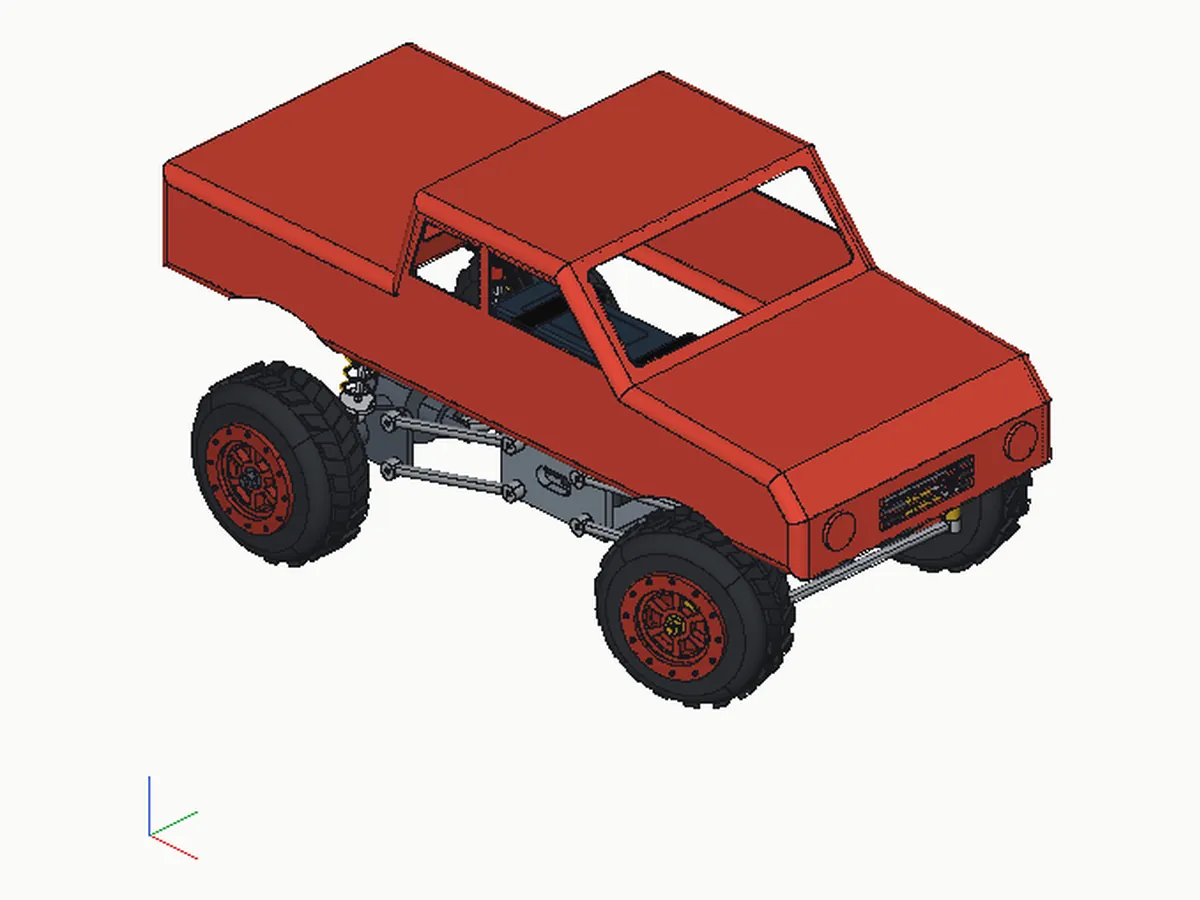
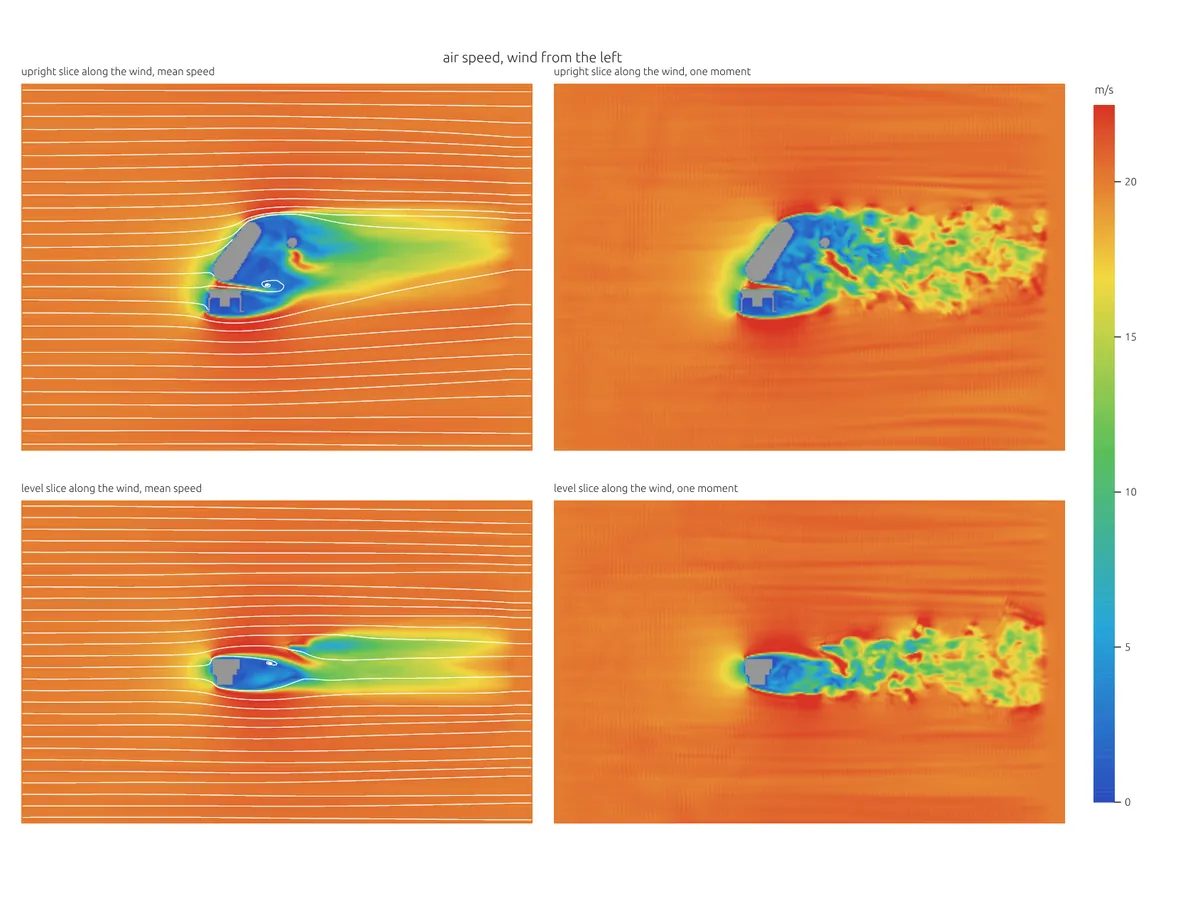
Bench Suite is nine free tools for the home workshop: parametric CAD, PCB design, 3D printing, antennas, software defined radio, radio firmware, thermal imaging and battery testing. Your coding agent writes the files and checks them. You watch it build.

Linux and macOS

curl -fsSL https://benchsuite.net/install.sh | sh

From idea to finished thing, at your desk

You do not need a lab, a licence server or an engineering degree to start. You need an idea, a coding agent and a few evenings.

  1. Describe

    Tell your agent what you want: a bracket for this motor, a preamp for 433 MHz, a battery box with a monitor. It loads the tool’s skill first, so it knows the file format before it writes a line.

  2. Check

    The tools run without a window, so the agent can build, check and fix in a loop. Clearances, design rules, impedance, stress, heat and RF come back as plain reports it can read.

  3. Make

    Export STEP, STL and 3MF for the printer, DXF flat patterns for sheet metal, Gerbers, drill files and a BOM for the board fab. printfarm queues the print and draws the part layer by layer.

  4. Measure

    Put the real thing on the bench. Sweep the antenna with a NanoVNA, cycle the battery, point a thermal camera at the board, then hand the numbers back to your agent.

Weekend projects to start with

Pick one, open Bench Suite, and ask your agent for it.

  • A robot arm for the desk

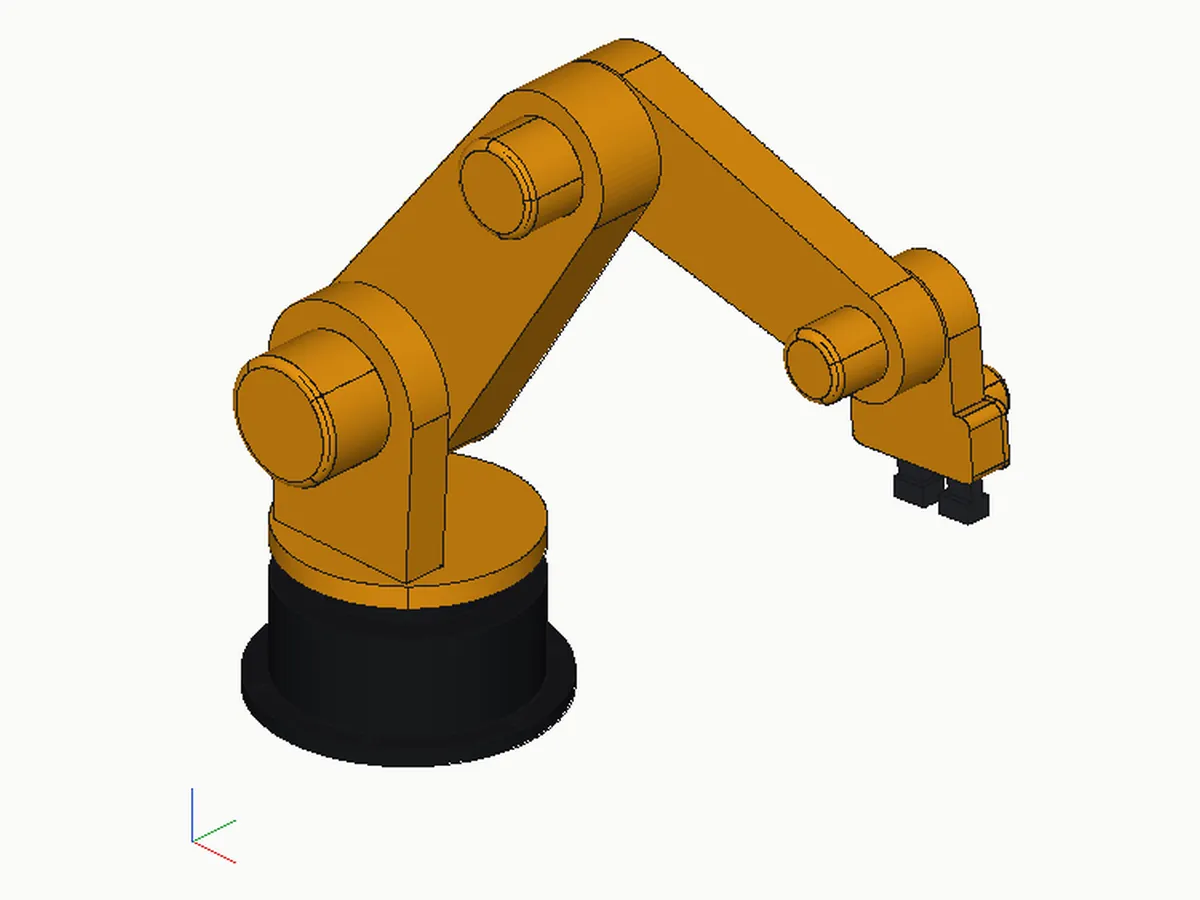
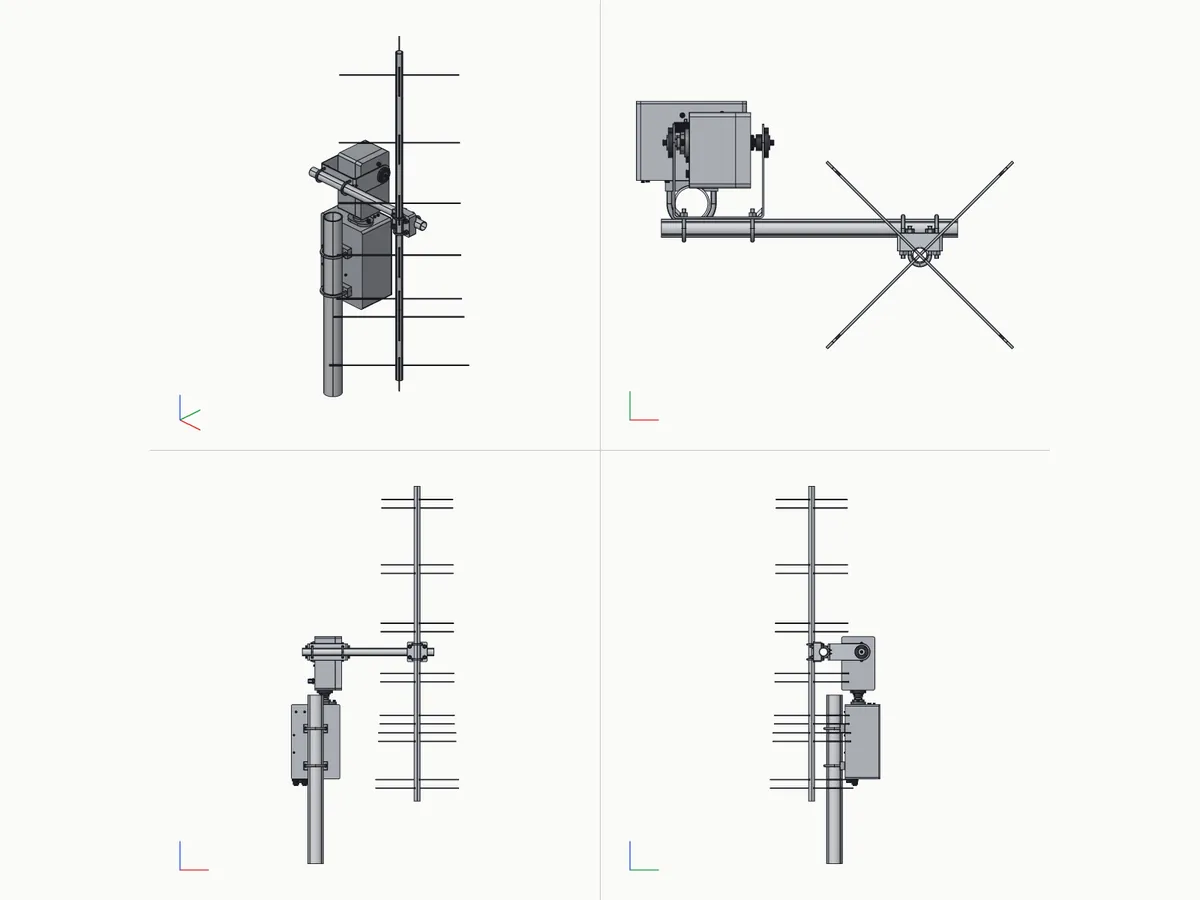
    Have your agent write the links and joints in gcad, size the motors with a torque simulation, print the parts and queue them in printfarm.

    gcadprintfarm

  • A preamp for your SDR

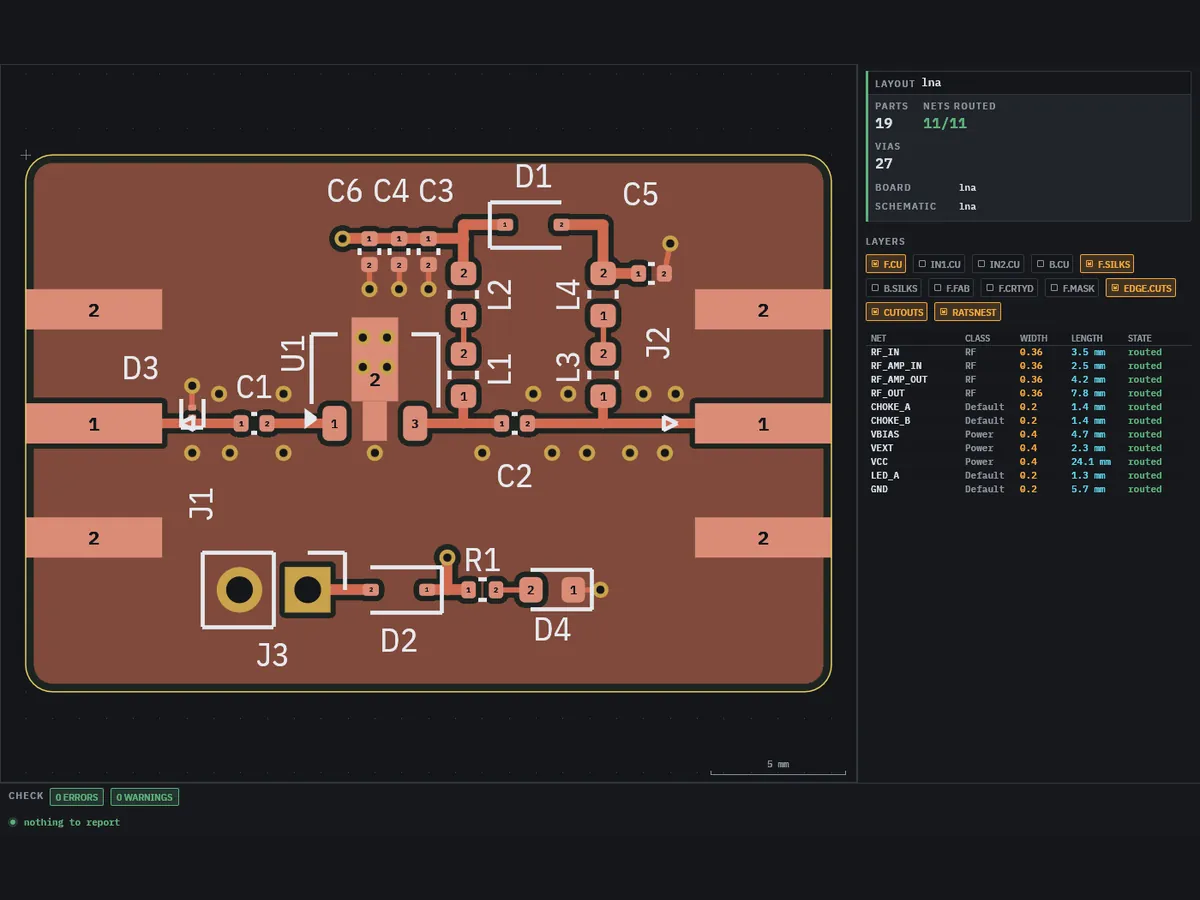
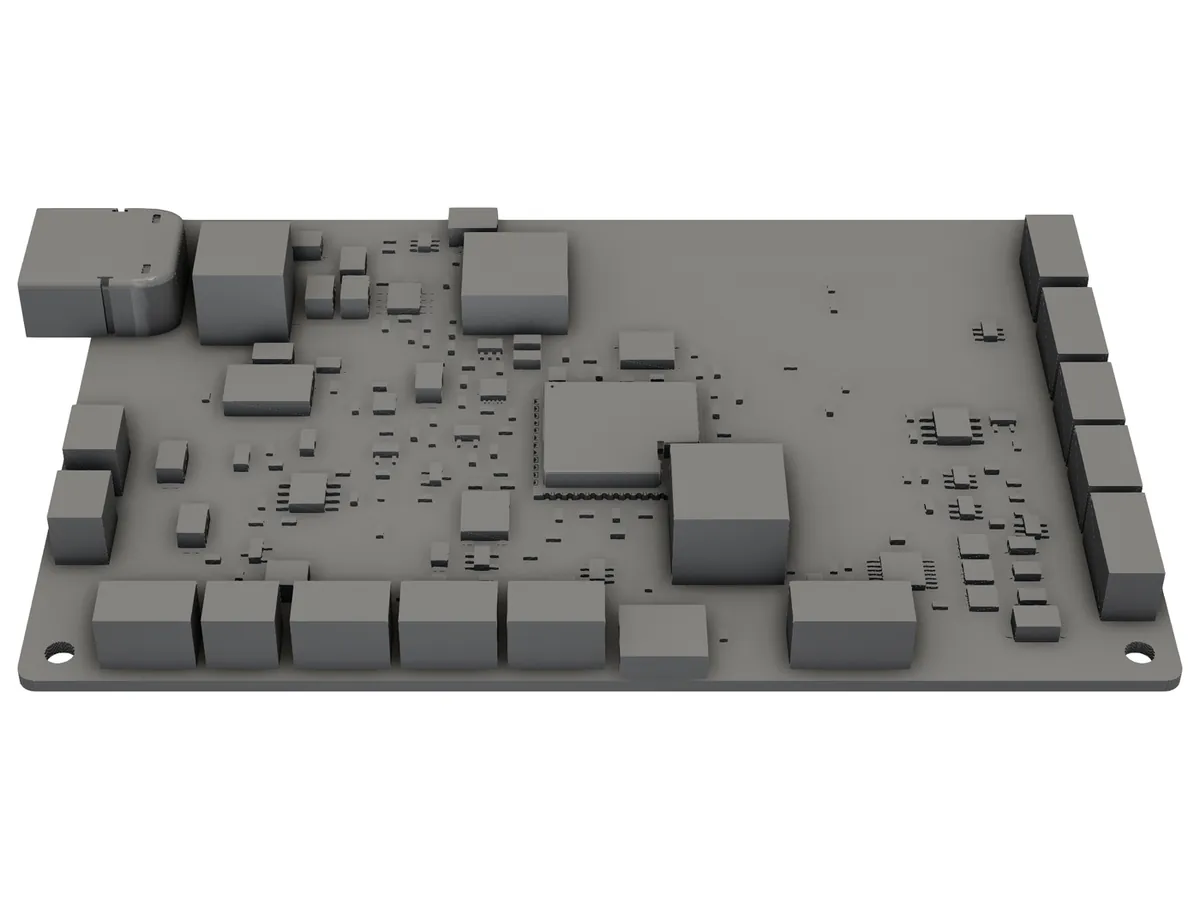
    Draw the board in agentee, check the traces for impedance, simulate it, send the Gerbers to a fab, then see what it picks up in WaveShark.

    agenteeWaveShark

  • An antenna cut to your band

    Pick a Yagi, Moxon or J-pole in Antenna Toolbox, get the cut sheet, build it, and sweep it with a NanoVNA to see where it really resonates.

    Antenna Toolbox

  • A battery bank you can trust

    Cycle each pack in Cycler to measure the capacity it really has, then leave Battery Control watching every cell and temperature.

    CyclerBattery Control

  • A print farm on a shelf

    Queue G-code from any slicer, watch each part grow in a 3D preview, and let the prints carry on when the laptop closes.

    printfarm

  • Find the hot part

    Photograph the board with a thermal camera, read the temperatures in thermview, and compare them with agentee’s thermal simulation of the layout.

    thermviewagentee

Built for agents, not just for people

Every design is a text file and every check is a command. That is exactly what a coding agent is good at, so the tools were made for one to drive.

Skills install with the tools

Installing gcad or agentee puts its agent skill in ~/.agents/skills, where Codex, Cursor, OpenCode, Gemini CLI, GitHub Copilot and pi read it. Claude Code, Windsurf, Goose, Roo Code, Kiro and Qwen Code get a link to the same copy.

Or use the agent in the window

The Agent key turns Bench Suite into a coding agent. Point it at any server that speaks the OpenAI chat API (OpenAI, OpenRouter, llama.cpp, vLLM, Ollama), so a model on your own GPU works.

Kept in a sandbox

Its shell runs in an operating system sandbox on Linux and macOS. It writes only inside its workspace folder, and has to ask you before it reaches into another.

You watch it build

The viewers redraw whenever a file is saved, so you see the part, the board or the plot change as the agent works. agentee can also serve a project to an agent over MCP.

Yours to keep

Plain text, so git works

Parts, boards and simulations are text files. Diff them, branch them, review them and roll them back like code.

Runs on your hardware

Simulations run on your GPU and the agent can run on a model in your own rack. No design leaves the machine unless you send it.

Free and open source

The launcher is MIT licensed and each tool carries its own licence. Read the code, fix it, send a patch.

Nothing to sign up for

Download it and start. There is no account, no subscription and no cloud to keep a design in.

How an update arrives

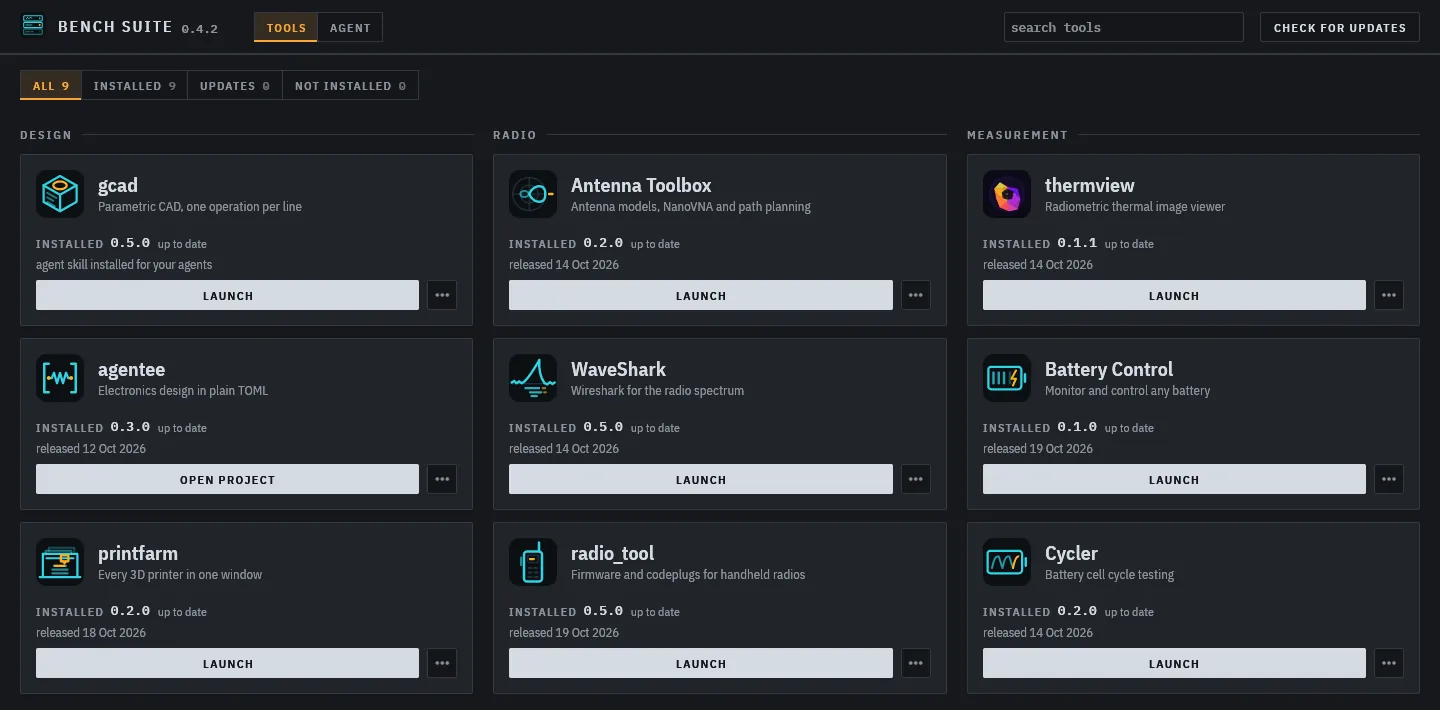
Every tool is checked when the launcher opens. A new release is one button, and the button turns into its own progress bar.

  1. Check

    On start, the launcher asks GitHub for the latest release of every tool and of itself. An answer that has not changed does not count against GitHub’s hourly limit.

  2. Download

    The build for your machine comes from the tool’s own release, with the progress drawn on the tool’s button.

  3. Verify

    The file is checked against the size and sha256 that GitHub publishes for it before anything is unpacked.

  4. Install

    The new version is swapped in place, even while the old one is running. The launcher updates itself the same way.

Drop a file on the window

A part, a board or a thermal image dropped on the launcher opens in the tool that reads it. Drop a project folder and it opens in agentee.

  • Already installed?

    A tool you installed with cargo or a package manager is found on your PATH and launched as it is. Its version is read, and the launcher only installs its own copy when you ask.

  • Something went wrong?

    If a tool exits with an error, the launcher shows the last line it printed instead of quietly doing nothing.

  • Nothing is bundled

    Each tool keeps its own repository, version and release. A fix in WaveShark reaches you the day WaveShark ships it, not when the suite does.

.gcad.gasm.gsimgcad
.board.toml.sch.toml.pcb.toml.sym.toml.fp.toml.sim.tomlagentee
.gcode.gcoprintfarm
.irg.jpg.img.seqthermview
Drop target

Get the launcher, then start building

The launcher is a single small program. Everything else installs from inside it, one tool or all nine.